

In the BA voucher system you can add, manage and remove user access to your BA voucher admin area. There are a number of options to consider when setting up a user.
There are two possible views at this point, one is a table which shows current users and when they were last active. To create a new user, press the create user button in the top right

The other is the current invitations which have been sent out to create user accounts. These will show invitations that have not turned into users so you can properly track whether employees have created their accounts.

There are two types of user you can create on the BA voucher system:
Email Users - These users sign in using an email address, they can reset their own password, you send invitations to these users who then set their own password.
Username Users - The user signs in using a username, their password can only be reset by another user with the manage users permission in the account. Our recommendation would be to use this option for employees and keep email users for administrators.

To create an email user, there are only 2 mandatory data fields:
Email address - this is the email which will be used to login and which will recieve the account invitation.
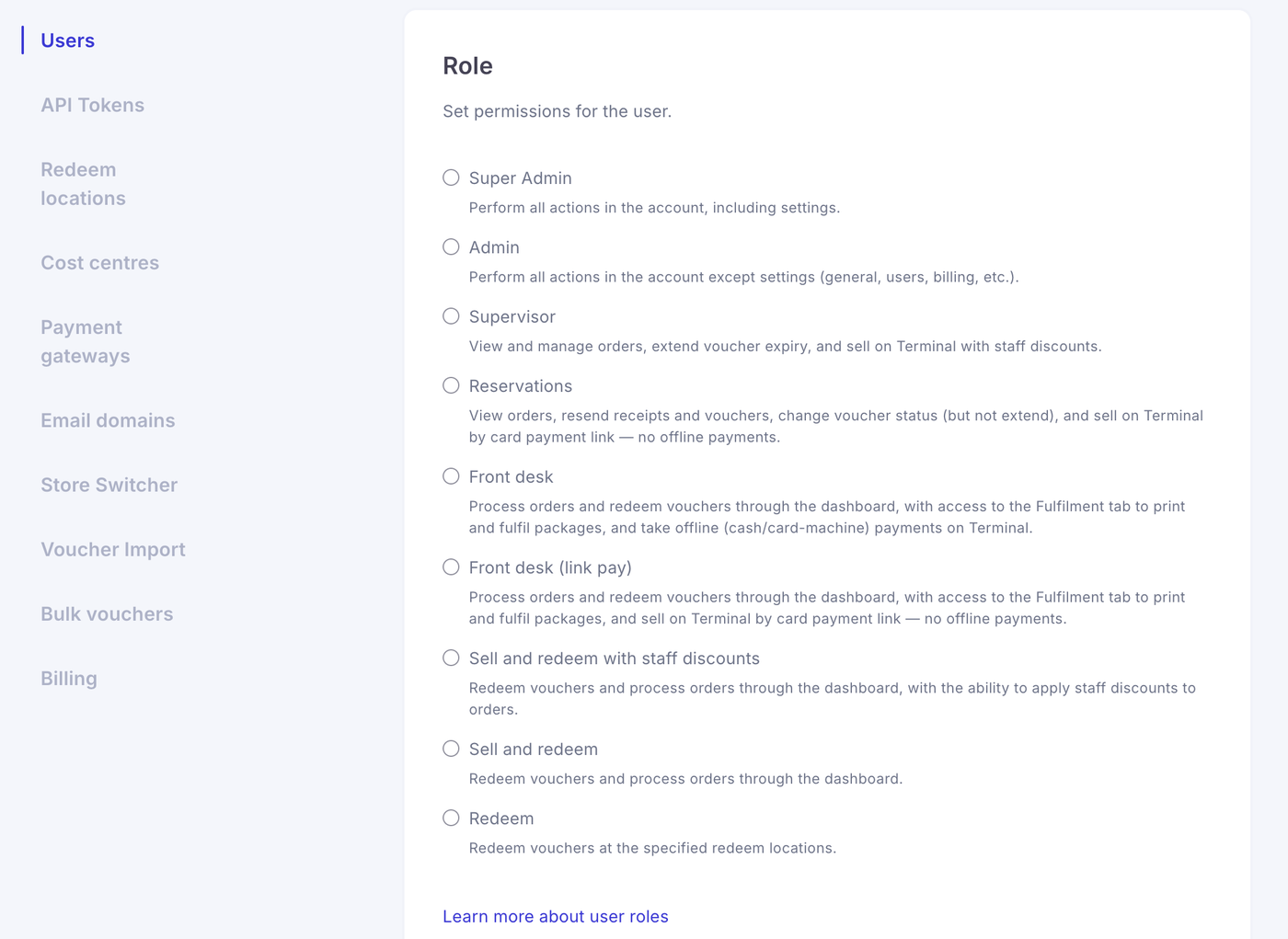
Role - This will allow you to choose between a number of roles which will have various levels of access to the system.
User roles control what each person can access and do in your account.
There are 9 user roles available in the system. Choose the role that matches their responsibilities, especially when giving someone access to account settings, voucher changes or payments on Terminal.
Account management
Super Admin
Can perform all actions in the account, including managing settings, users and billing.
Admin
Can perform all actions except managing account settings, such as general settings, users and billing.
Orders, reports and reservations
Supervisor
Can view and manage orders, download reports, extend voucher expiry dates and sell on Terminal with staff discounts.
Reservations
Can view orders, resend receipts and vouchers, and change voucher status. This role cannot extend voucher expiry dates. Reservations users can sell on Terminal using a card payment link, but cannot take offline payments.
Front desk
Both front desk roles can process orders and redeem vouchers through the dashboard. They can also access the Fulfilment tab to print and fulfil packages. The difference is how they take payment on Terminal:
Front desk (offline only): Can take offline payments, such as cash or payments made on a separate card machine. Cannot create card payment links.
Front desk (link pay): Can sell using a card payment link. Cannot take offline payments.
Selling and redeeming
Sell and redeem with staff discounts
Can process orders and redeem vouchers through the dashboard, and apply staff discounts to orders.
Sell and redeem
Can process orders and redeem vouchers through the dashboard.
Redeem
Can redeem vouchers at the redeem locations specified for the user.
Choosing a role
Give each user the role that covers the work they need to do. If a front desk user needs to take cash or card-machine payments, select Front desk (offline only). If they need to send customers card payment links, select Front desk (link pay).
There are two optional settings when creating a user:
Redeem locations - this sets a limit on where the user can redeem from, the user can redeem from all redeem locations in the account unless you set a specific restriction on a user. If any new redeem locations are created, the user will be able to redeem from them as well unless restricted.
Tags - You can tag specific users with data points for external systems which link into BA Vouchers via our API.
Stores - this sets a limit on visibility, this user will only see and be able to interact with orders and stores from a particular store, all users will be able to see orders sold from every store unless you restrict.
Cost Centres - if the account has cost centres enabled and is a admin or sell and redeem with staff discounts user, you can assign them a particular cost centres, i.e. a user from marketing would be locked to using the marketing cost centre when using the discount function. If the user is not restricted all cost centres can be used.
For username users the process is much the same:

The only difference is you will need to set a password on their behalf.
Note: BA vouchers do not communicate this password to the user, you must do this internally with your employees / partners.